


This week a customer from an advertising agency I work for sent me a PDF file to translate containing a newspaper article she had scanned. What struck me right away was that the whole article was an image and that it was laid out in a number of columns with a headline and large picture at the top. It looked quite nice as pieces of journalism go, but how did she expect me to make a quotation and translate the text? To be honest, I don't think she realised what she was asking of me; these days it's so common for people in PR, sales and marketing to work with PDFs of glossy-looking articles that they don't realise how tricky they can be for translators to deal with.
One way of handling such image files is to load them into Adobe Acrobat®, a powerful but pricey application for creating and editing PDF documents. You import the file and then process it using the optical-character-recognition feature (OCR). This theoretically "captures" any text found in the image and makes it editable. After doing that and saving the results as a new PDF file, you can export it to an external word-processing application like Microsoft Word® and then check it to see if all the text has been captured and reproduced correctly. It's only once this last step has been taken that you can actually start translating.
If you do most of your translating in a CAT tool, then you may also want to go over the editable file again before doing that using a utility such as Dave Turner's CodeZapper as this can reduce the number of formatting "tags" or "codes" in it, which appear in the translation grid and stop you from translating segments quickly (as you have to insert them in your translation one by one).
Well, after creating an editable Word file from Adobe Acrobat XI and not being very impressed with the outcome, I remembered a blog post that Dominique Pivard wrote a while ago about handling scanned PDFs using a Web-based CAT tool called Wordfast Anywhere®. Dominique has made a large number of short but generally very instructive videos on CAT tools that you can watch on his blog or on YouTube for free, and this is one of them.
I watched the video twice (just to make sure I'd understood everything!), set up a free user account on the Wordfast Anywhere site and then uploaded the original scanned PDF file to it. You need to create a translation memory and set the source and target languages before it processes the PDF, but once you've done that, you're off! The Wordfast Anywhere server processed my PDF file using a powerful OCR algorithm and converted it into an editable file in just a few minutes. It lets you either translate the output in a Wordfast environment directly on the server or download the file and translate it by other means if you wish (e.g. in a desktop CAT tool).
The results of the conversion I got it to do were very good and the file didn't need much fine-tuning at all – it was better than Acrobat's output and didn't cost me a penny.
Many thanks to Dominique for making his video tutorial. If you'd like to watch it, then just click here. (The 4-minute video will start running as soon as the page has built up in your browser.)
Carl
image: Wordfast logo © Wordfast LLC
Related posts: Uses of Adobe Acrobat XI (part 1)
 As I mentioned at the end of last month, the Hungarian CAT-tool maker Kilgray recently released a new version of its main product for freelance translators, memoQ, called "memoQ 2013 R2" (the "R" stands for "release", apparently). I've been using this version of memoQ ever since then and have found it to be robust and very convenient thanks to various enhancements to existing features and several brand new features it comes with.
 To find out more about this particular release, you can now sign up to attend a free, one-hour webinar by Kilgray on the tool's new features, which is going to be staged later this week: on 14 November at 4 p.m. GMT (= 5 p.m. CET). Click
  MemoQ (pronounced "memo kyu") is a CAT tool that has become very popular among translators, partly because it offers a lot of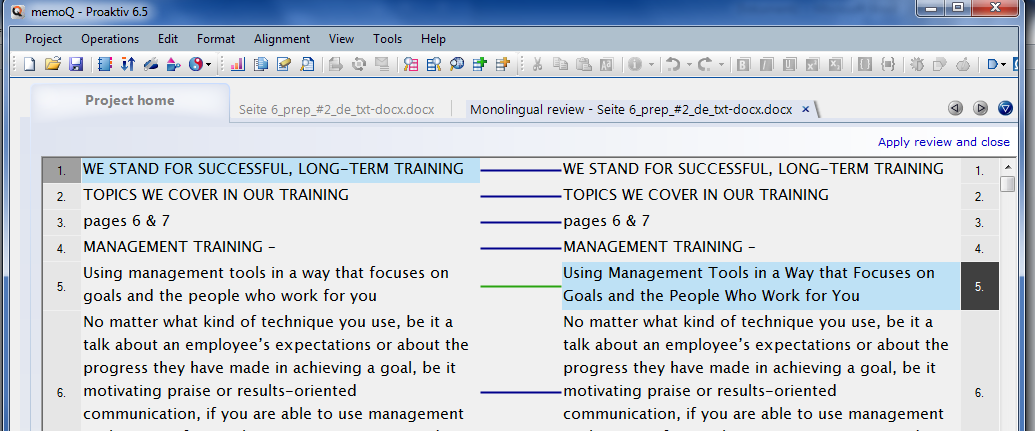
 Well, the build-up to its appearance on the translation stage was big, as you might expect from SDL Trados! Have you heard the news yet? If you're also a translator and use translation software to help you with your daily work, then you may already be aware that the largest maker of computer-assisted translation (CAT) software tools recently launched the latest version of its key product (on 30 September).
 ... but then again, I expect they wanted to get a competitive edge over one of their main competitors, the Hungarian firm
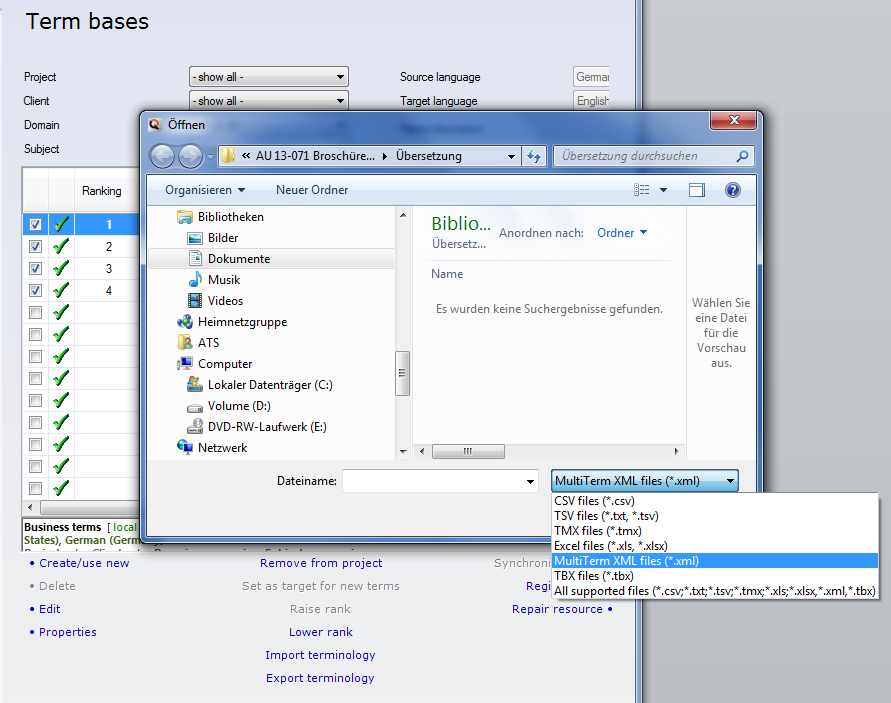
  Studio 2014 is based on the 2011 version, but the interface has been enhanced to make it easier to use. One of the main changes you'll notice is that a ribbon-based interface has now been adopted, organising related functions in tabs in a similar way to the programs that come with Microsoft Office 2007/2010. So if you're used to working with the latter, you ought to find it relatively easy to get to grips with Studio 2014. In addition to that, new areas have been added to the interface for training purposes – you can now access training videos directly from the program, for example – and you can access additional "apps" for Studio from here, too, by following an internal link to SDL's
  The good thing about e-learning is that it is generally done at your own pace rather than the speed set by a teacher, it's done at a time of day and a location that you can generally choose yourself, and in some cases, you can even tackle the subjects that are covered in the order that suits you best. So it's a very flexible form of instruction, which helps to make it effective.
 If you are a translator who uses one of SDL's computer-assisted translation (CAT) tools (e.g. Trados® 2007 or one of the newer versions of Trados® Studio (2009 or 2011), you will probably already have heard about the firm's relatively new software-development platform
  Still, a number of the Studio and MultiTerm plug-ins and apps do look interesting and provide enhancements that are still lacking in memoQ. In the course of time, however, memoQ users may find that a growing number of these are being offered on the Language Terminal. Let's wait and see how it evolves...
 Earlier this year, an American colleague of mine, Kevin Lossner, published an e-book on memoQ, a CAT tool that has been around for a number of years and is developing at a break-neck pace. I read the book as soon as it came out and found it to be well-written, interesting and, most of all, helpful (which is what you'd expect a guide like this to be, but isn't necessarily the case). Well, I liked it – his way of presenting the material is a good one: using short-but-clear explanations with lots of screen shots to make the outlines and instructions easy to follow.


Comments